Connect your Sync™ and Xero accounts for low cost payment links on invoices
Connect your Sync™ account to Xero invoicing and take advantage of our payment processing rates when your customers pay their invoices.
Connect your Sync™ and Xero accounts in 2 easy steps #
- Connect to Xero
- Map your account
Please note: Our integration does not currently support the ability to sync historical Sync™ data into Xero if it is unrelated to Xero invoices.
Step 1 of 2: Connect to Xero #
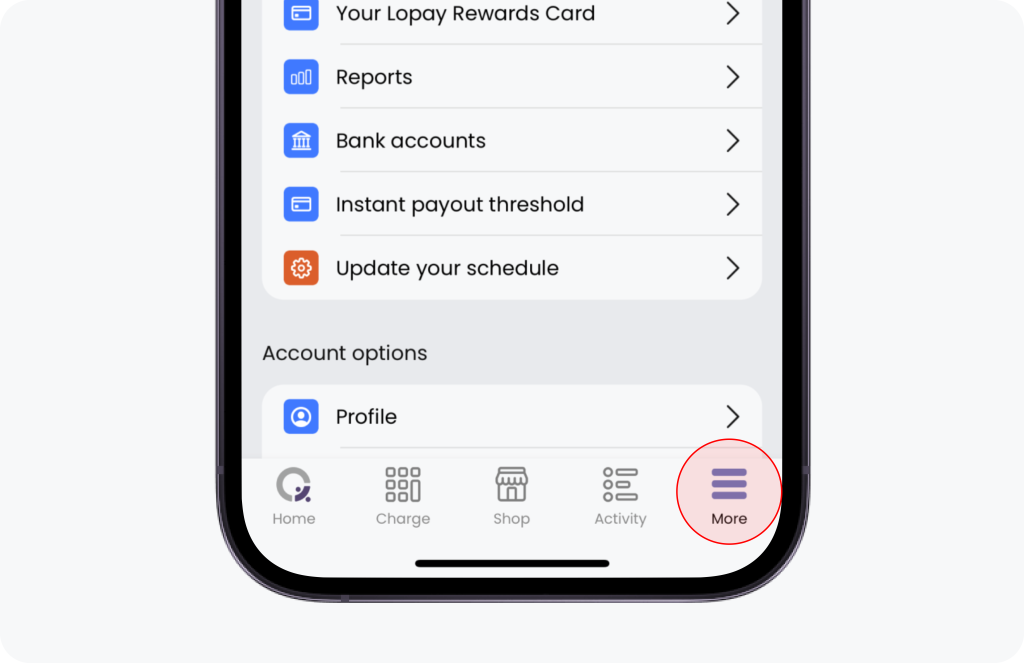
In the Sync™ app, select the “More” tab at the bottom of your screen.
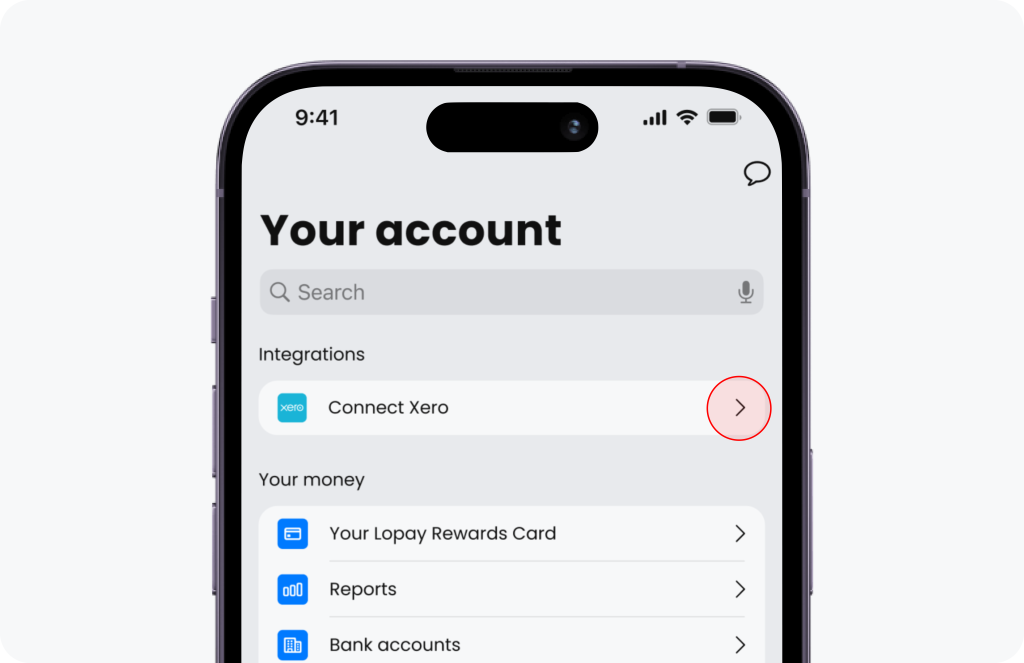
Next select “Connect Xero”.
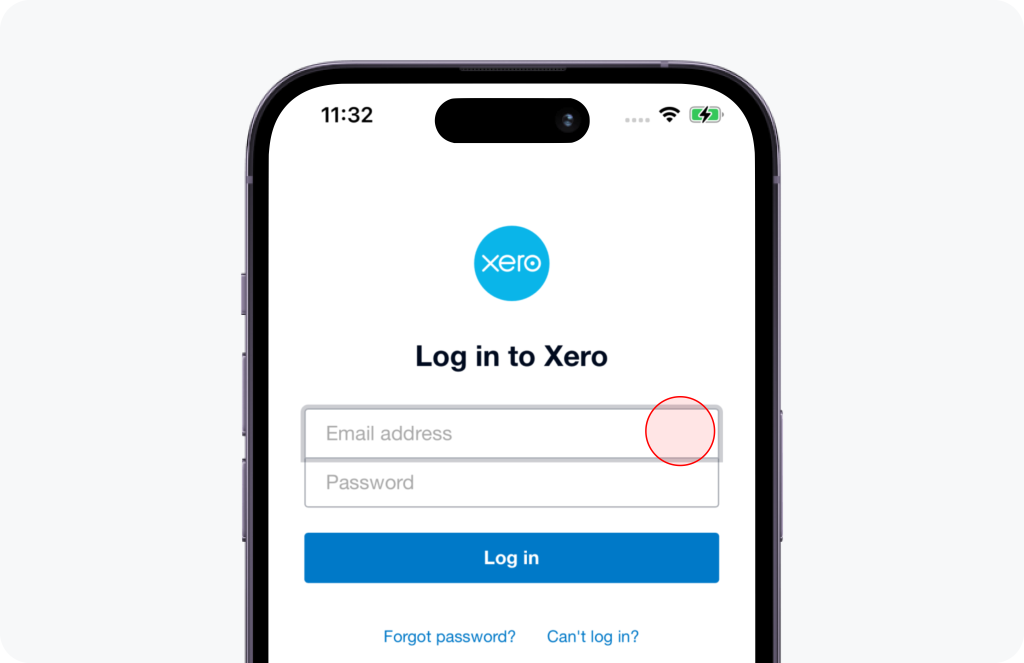
This will ask you to sign in to Xero and connect your account.
Step 2 of 2: Account mapping #
You will now need to select a Xero account to act as your ‘clearing account’ for Sync™ payments. All invoices paid via Sync™ will be recorded and automatically reconciled against the account you select here.
When you initially connect to your Sync™ account with Xero, we automatically create a new clearing account for you called ‘Sync™ clearing [LOPAYCLEAR]’. Feel free to use this account, or use one of your existing bank accounts to record Sync™ payments against.
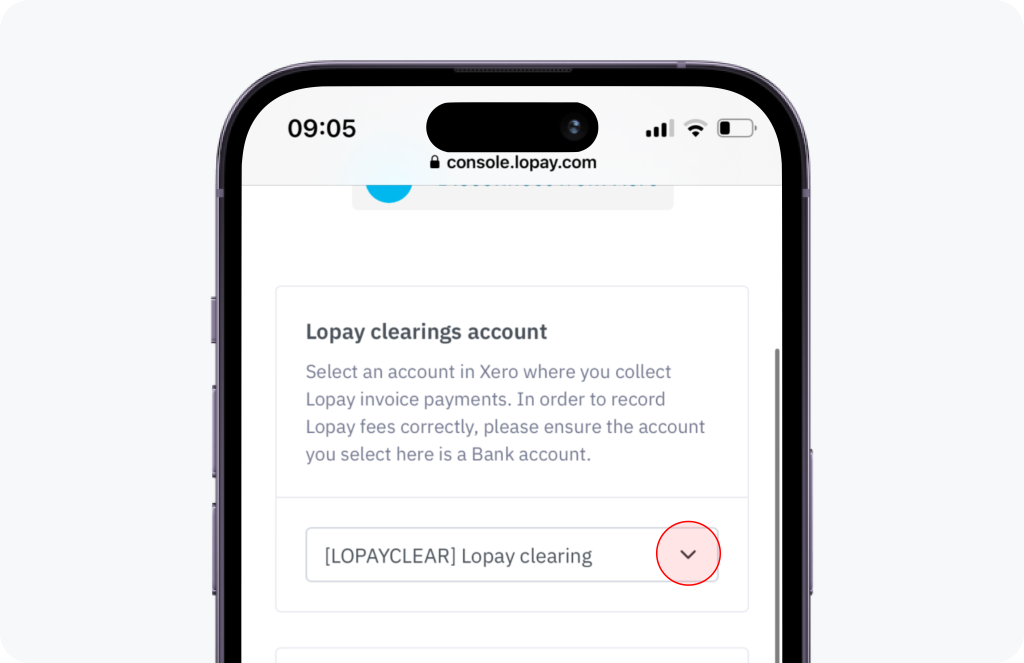
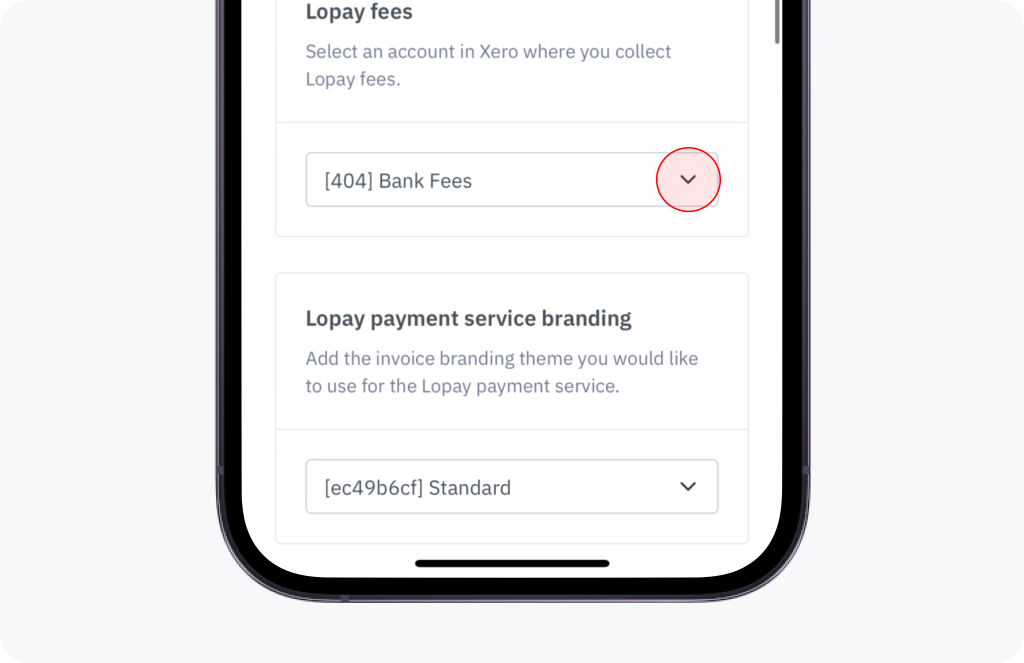
Next, you will need to select an expense account to record the Sync™ transaction fees against.
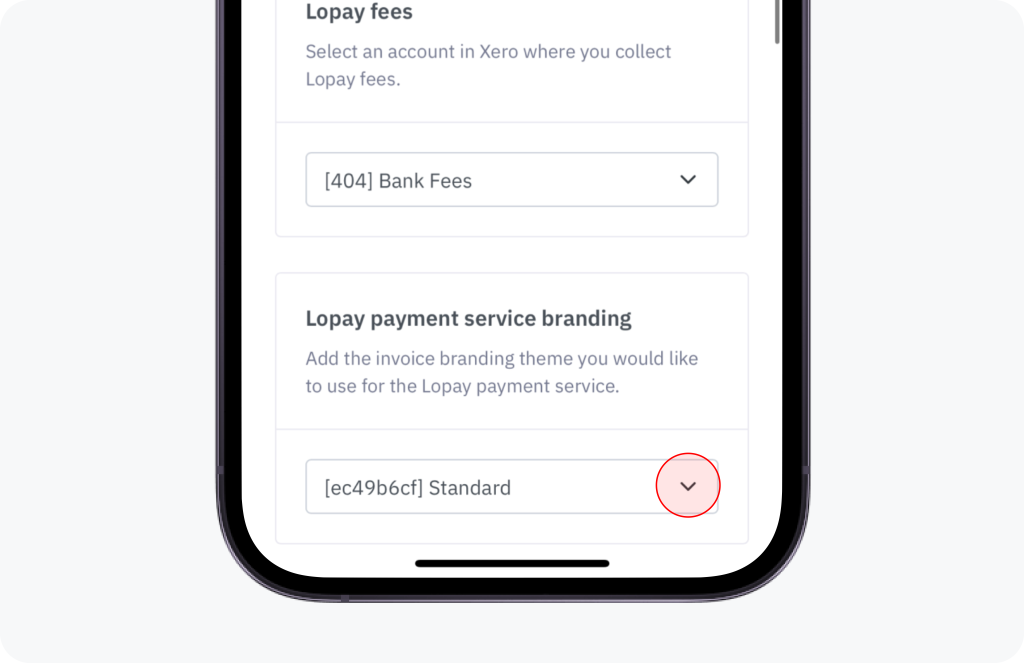
Finally, you will need to select which invoices template (branding themes) you want to use with the Sync™ payment service.
Your Xero and Sync™ accounts are now connected!
After adding your custom URL to Xero, you can now use Sync™ to accept payments for your Xero invoices. You will need to remember to select Sync™ as the online payment method when creating your Xero invoice.
For any further questions or help, please email support@Sync™.com


