
Create and manage employee accounts
What is Sync™ Teams? #
With Sync™ team accounts you can invite others to securely take payments on your behalf.
In summary, you can:
- Invite team members and remove them whenever you want
- Easily set or change their permissions at any point
- Quickly see reports for each team member
Note: reports and statements are only available for the past 12 months
When you set up a team, your team members simply need to accept your invite (which they will receive via email) and download the Sync™ app. They won’t need to provide identity details or bank details.
How many team members can I have? #
You can invite as many team members as you need, completely free of charge! Tap the ‘My Team‘ tile on your app home page to start inviting team members.
What permissions can I give team members? #
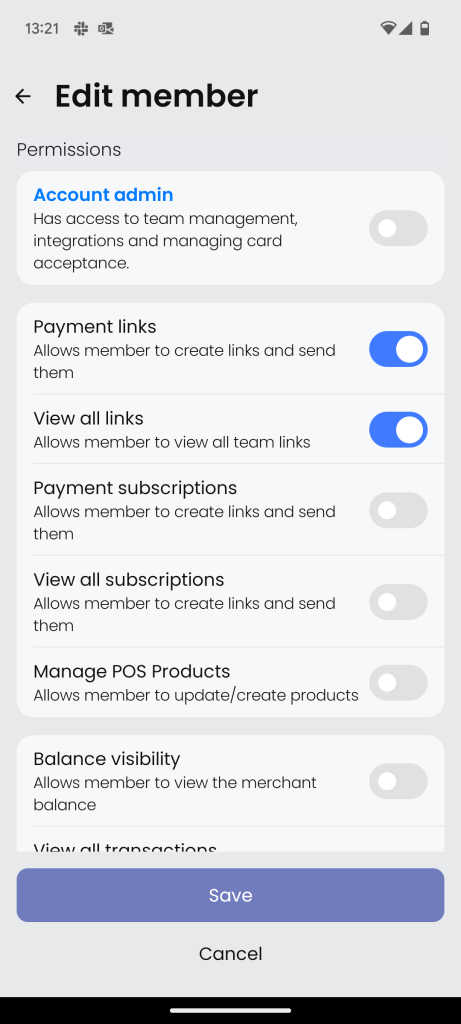
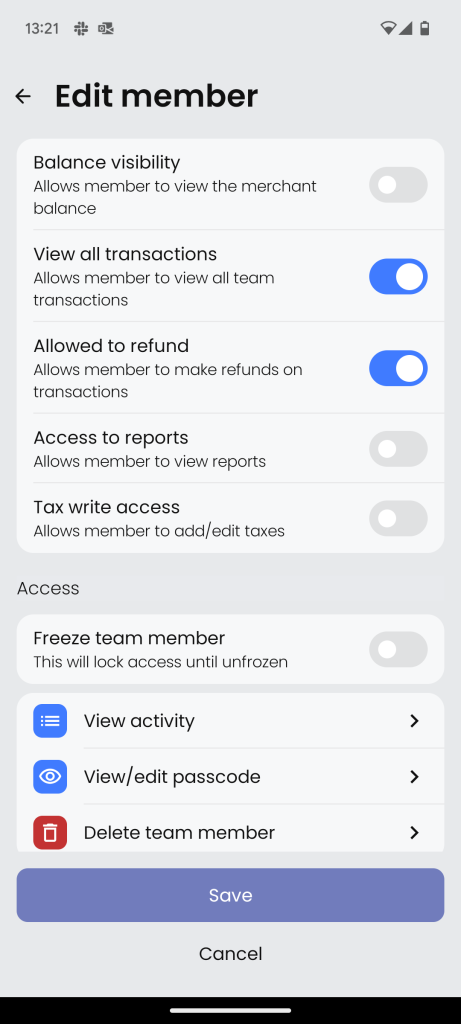
You can enable your employees to do any of the following and you can change their access at any time. Go to the ‘My Team’ tile on your app home page and select or add a team member – you can then toggle on/off their permissions as follows:
- Account Admin – If on, your team member will have full control of the merchant account and settings, which includes making changes to the business profile, bank account details, and payout schedule
- Payment links – If on, your team member will be able to create and send payment links to customers
- View all links – If on, your team member will be able to see payments links sent by other members of the team, both pending and completed payment links
- Payment subscriptions- If on, your team member will be able to create and send subscription links to customers
- View all subscriptions – If on, your team member will be able to see subscription links sent by other members of the team, both pending and completed payment links
- Manage POS products – If on, your team member will be able to add, edit or remove products from your Shop grids
- Balance visibility – If on, your team member will be able to see all transactions of other team members
- View all transactions -If on, your team member will be able to view transactions of other team members
- Allowed to refund – If on, your team member will be able to issue refunds for the completed payment transactions they have taken
- Tax write access – If on, your team member will be able to add or edit the taxes applied to transactions
Please Note: If you want Team Members to be able to take Tap to Pay payment, you must accept the associated Terms first. To do this, select ‘My Devices’ on the app home page and then setup ‘Tap to Pay’.
How can I freeze or remove a team member? #
The account owner and account admins can do this at anytime within their Sync™ app. The team member’s access will be immediately revoked.
1) Open the Sync™ app and go to “Home“
2) Scroll down and select “My team“
3) Select the team member in question
4) Scroll down and select ‘Freeze’ or ‘Delete account’ and then ‘Confirm’
How can I see the transactions of a team member? #
From the Activity page in the app (fourth icon in the bottom menu) select ‘View all’ beside ‘Recent Transactions’.
You can then filter transactions for a specific team member by selecting the people icon in the top right corner and then selecting the team member.
You can also download these transactions by then selecting the download icon, entering a time period, and selecting Confirm. You will then be able to choose from Excel, CSV or PDF and send the selected file to yourself or your accountant via email.
For any further questions or help, please email us at support@Sync™.com.
To get the most from your Sync™ app, please ensure you have the latest version – simply head to your app store to download the update.


